Blender Viewport Navigation for Beginners: Move Around the 3D Space Like a Pro
Blender Viewport Navigation for Beginners: Move Around the 3D Space Like a Pro
If you've just opened Blender for the first time, chances are you've already gotten lost in the viewport. One accidental mouse movement and suddenly you're looking at your scene from underneath or floating in empty space.
Don't worry. Every Blender artist goes through this.
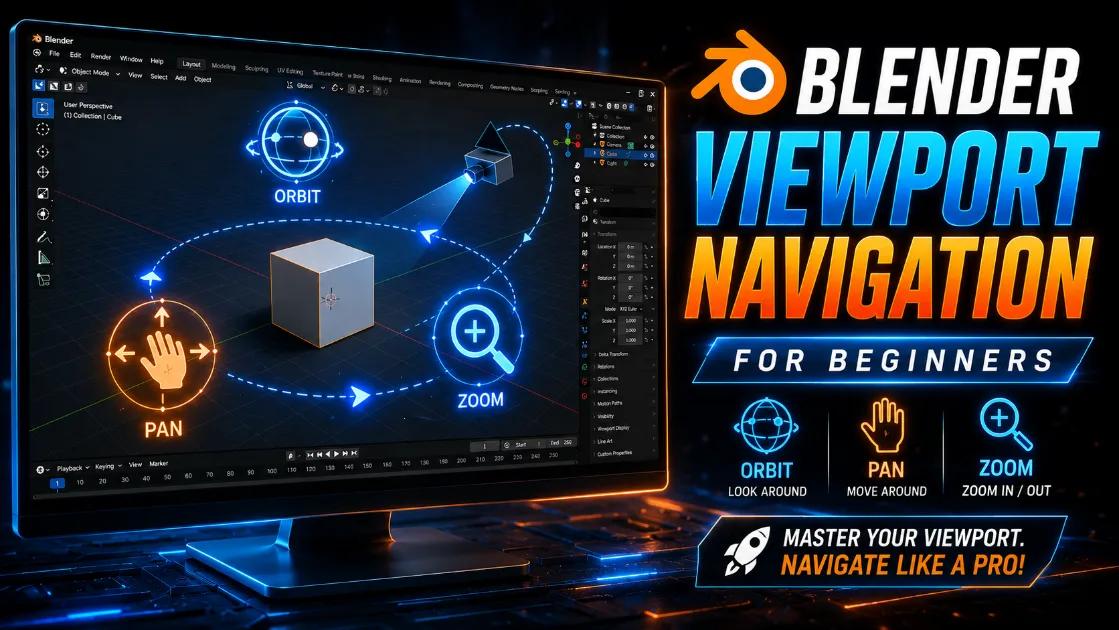
Quick answer: Blender navigation mainly comes down to three actions:
- Orbit: Middle Mouse Button (MMB) + Drag
- Pan: Shift + MMB + Drag
- Zoom: Scroll Wheel or Ctrl + MMB
Once these three controls become muscle memory, using Blender feels a hundred times easier.
What Is the Viewport in Blender?
The 3D Viewport is the large area in the center of Blender where you create and edit your models. Think of it as your virtual workspace.
Everything you do in Blender happens here:
- Modeling
- Sculpting
- Animation
- Lighting
- Rendering setup
Learning to move around this space efficiently is your first big step toward becoming comfortable in Blender.
How to Orbit Around Your Scene
Shortcut
Middle Mouse Button (MMB) + Drag
This lets you inspect your model from every angle.
For example, if you're creating a car, you'll constantly orbit around it to check the front, sides, roof, and interior details.
How to Pan the View
Shortcut
Shift + Middle Mouse Button + Drag
Panning moves the camera sideways or up and down without rotating it.
This is useful when working on small details or moving to another part of your model.
How to Zoom In and Out
Method 1
Scroll your mouse wheel.
Method 2
Hold Ctrl + Middle Mouse Button and drag up or down.
Zooming is essential because you'll constantly switch between large scene views and tiny details.
Focus on a Selected Object
Shortcut
Numpad . (Period)
Blender instantly focuses on the selected object.
Lost somewhere in space? Select your object and press Numpad Period.
Front, Side and Top Views
| View | Shortcut |
|---|---|
| Front | Numpad 1 |
| Side | Numpad 3 |
| Top | Numpad 7 |
Hold Ctrl with these shortcuts to get the opposite views.
Perspective vs Orthographic View
Perspective View makes distant objects appear smaller, similar to real life.
Orthographic View keeps everything the same size, making precise modeling easier.
Shortcut
Numpad 5
What If You Don't Have a Numpad?
Go to:
Edit → Preferences → Input
Enable:
Emulate Numpad
Now your regular number keys will work as viewport shortcuts.
How to Reset When You're Completely Lost
- Select any object in the Outliner.
- Press Numpad Period.
- Zoom out if needed.
- Return to Front View using Numpad 1.
Useful Viewport Navigation Shortcuts
| Action | Shortcut |
|---|---|
| Orbit | Middle Mouse Button |
| Pan | Shift + MMB |
| Zoom | Mouse Wheel |
| Focus Object | Numpad . |
| Front View | Numpad 1 |
| Side View | Numpad 3 |
| Top View | Numpad 7 |
| Toggle Perspective | Numpad 5 |
Practice Exercise
- Add a cube.
- Orbit around it.
- Zoom in and out.
- Pan to one side.
- Switch to Top View.
- Return to Perspective View.
- Focus on the cube again.
Spend ten minutes practicing these movements and you'll feel much more comfortable inside Blender.
FAQ
Do I need a mouse for Blender?
Yes. Blender is much easier with a three-button mouse.
Why does my viewport suddenly disappear?
You're usually just zoomed too far away. Press Numpad Period on a selected object.
Can I change navigation controls?
Yes. Blender allows you to customize almost every shortcut in Preferences.
How long does it take to get comfortable with navigation?
Most beginners become comfortable after a few days of regular practice.
Final Thoughts
Viewport navigation may seem small, but it's one of the most important skills in Blender. Every model, animation, and render starts here.
Master orbiting, panning, and zooming first. Once these movements become automatic, learning the rest of Blender becomes much easier.
More Posts
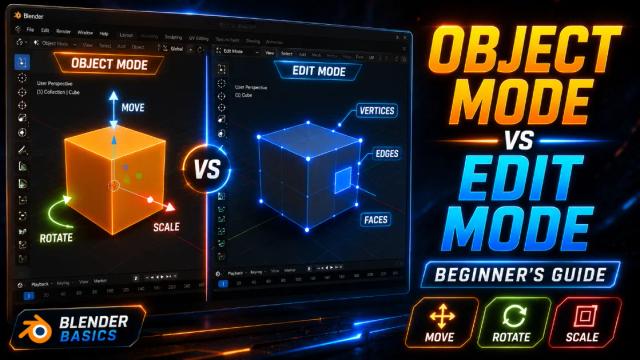
Learn the Blender Interface: Understanding Object Mode and Edit Mode
Learn the difference between Object Mode and Edit Mode in Blender and understand when to use each one while creating 3D models.
The Complete Blender Learning Roadmap for Beginners in 2026
A complete step-by-step Blender roadmap for beginners, from your first model to creating game-ready assets and animations.
What Is Lowpoly 3D Modeling and Why Indian Game Creators Should Care
Lowpoly 3D modeling is lightweight, game-ready, and perfect for Indian creators. Here's what it is, why it matters, and how to start.