Learn the Blender Interface: Understanding Object Mode and Edit Mode
Learn the Blender Interface: Understanding Object Mode and Edit Mode
If you're opening Blender for the first time, one thing will confuse you almost immediately. You press a few keys and suddenly the cube behaves differently. One moment you're moving the entire object, and the next you're selecting tiny points and edges.
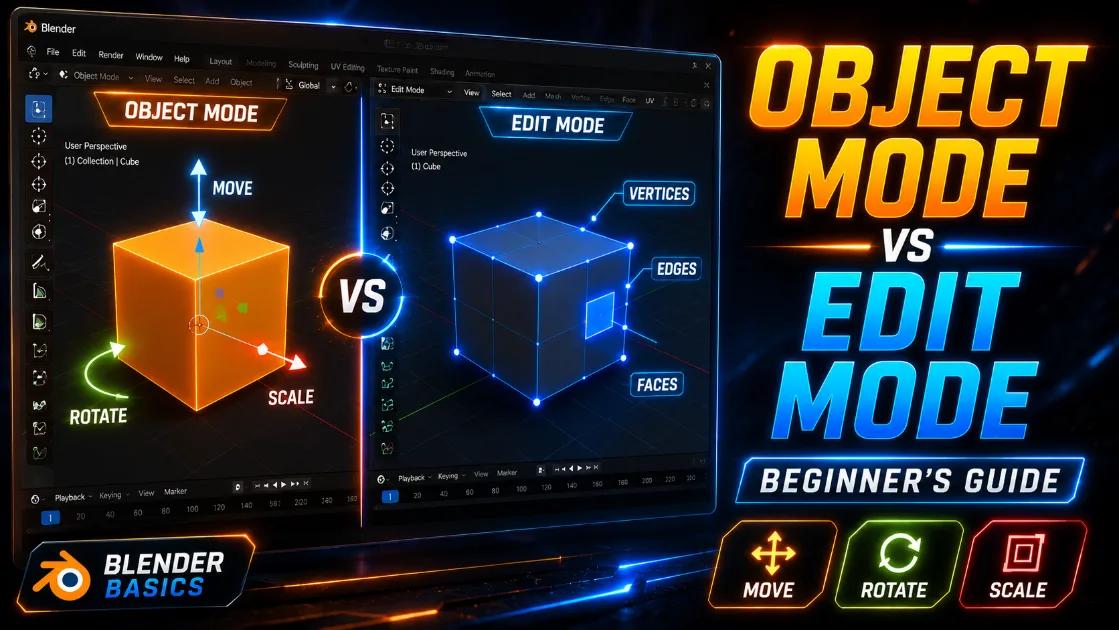
That's because Blender has two important working modes: Object Mode and Edit Mode. Understanding the difference between these two modes is one of the biggest beginner milestones in Blender.
Quick Answer: Object Mode is used to work with entire objects, while Edit Mode is used to modify the geometry inside an object, such as vertices, edges, and faces.
Why Does Blender Have Different Modes?
Think of it like working with a toy car.
- In Object Mode, you're picking up the entire toy car and moving it around.
- In Edit Mode, you're opening the toy car and changing its doors, wheels, and windows.
Blender separates these tasks because moving an object and changing its shape are completely different operations.
Once this clicks in your head, Blender suddenly feels much easier to understand.
What is Object Mode in Blender?
Object Mode is the default mode when you open Blender. It allows you to work with complete objects inside your scene.
For example, you can:
- Move an object.
- Rotate it.
- Scale it.
- Duplicate it.
- Delete it.
- Add modifiers and materials.
- Organize multiple objects.
If you're building a scene with several objects like a bus, road, trees, and buildings, you'll spend a lot of time in Object Mode.
Image: Replace with an official Blender screenshot or your own screenshot.
Common Object Mode Shortcuts
| Action | Shortcut |
|---|---|
| Move | G |
| Rotate | R |
| Scale | S |
| Duplicate | Shift + D |
| Delete | X |
| Add Object | Shift + A |
| Switch to Edit Mode | Tab |
These shortcuts become muscle memory after a few days of practice.
What is Edit Mode in Blender?
Edit Mode lets you change the actual shape of an object.
Instead of selecting the entire cube, you'll be able to select:
- Vertices (points)
- Edges (lines)
- Faces (surfaces)
This is where real modelling begins.
Every vehicle, bus, building, and prop in a game is created by editing these tiny components.
If you're planning to create game-ready models for platforms like HariVids, you'll spend most of your modelling time inside Edit Mode.
Image: Replace with an official Blender screenshot or your own screenshot.
The Three Selection Modes Inside Edit Mode
When you enter Edit Mode, Blender gives you three ways to select geometry.
Vertex Select
Used to select individual points.
Best for:
- Precise adjustments
- Creating custom shapes
- Fixing topology
Edge Select
Used to select lines between vertices.
Best for:
- Creating loops
- Sharpening models
- Adding details
Face Select
Used to select entire surfaces.
Best for:
- Extruding parts
- Deleting sections
- Building larger shapes quickly
How to Switch Between Object Mode and Edit Mode
The fastest way is simply pressing:
Tab
Press Tab once:
- Object Mode -> Edit Mode
- Edit Mode -> Object Mode
You can also use the mode dropdown in the top-left corner of the viewport.
Most Blender artists use the Tab key because it is much faster.
A Real Example: Modelling a Force Traveller
Let's say you're creating a Force Traveller model.
Step 1
In Object Mode, add a cube.
Step 2
Scale it roughly to the shape of the vehicle.
Step 3
Press Tab.
Now you're in Edit Mode.
Step 4
Select faces and extrude them to create:
- Front bonnet
- Roof
- Side panels
- Windows
Step 5
Return to Object Mode and check the overall proportions.
This constant switching between modes is how most Blender artists work.
Beginner Mistakes Everyone Makes
Trying to edit geometry in Object Mode
Nothing happens because Object Mode only works with the entire object.
Trying to move an object in Edit Mode
Instead of moving the object, you move its vertices and accidentally deform the model.
Forgetting which mode you're in
This happens to everyone.
If Blender suddenly behaves strangely, the first thing to check is your current mode.
When Should You Use Object Mode?
Use Object Mode when you want to:
- Arrange your scene.
- Duplicate objects.
- Add modifiers.
- Apply materials.
- Position models.
- Organize collections.
When Should You Use Edit Mode?
Use Edit Mode when you want to:
- Create models.
- Add details.
- Change geometry.
- Extrude shapes.
- Fix topology.
- Optimise game-ready meshes.
Why This Matters for Game Modelling
Whether you're creating a BUSSID vehicle, a low-poly prop, or a complete game asset, understanding these two modes is essential.
Every professional Blender artist switches between Object Mode and Edit Mode hundreds of times during a project.
The faster you become at moving between them, the faster your modelling workflow becomes.
If your dream is to create mods and 3D models for games, mastering these two modes is your first real step.
FAQ
Can I model without using Edit Mode?
No. Most traditional modelling in Blender happens inside Edit Mode.
What is the shortcut to switch modes?
Press Tab.
Why can't I select vertices?
You're probably still in Object Mode. Switch to Edit Mode first.
Which mode do professionals use more?
Both. Professionals constantly switch between Object Mode and Edit Mode throughout the modelling process.
Final Thoughts
Blender can feel overwhelming in the beginning, but understanding Object Mode and Edit Mode removes a huge amount of confusion. Once you know what each mode is designed for, creating models becomes much more enjoyable.
If you're learning Blender to create game-ready assets, check out the growing collection of low-poly assets and tutorials on https://harivids.in/models. And if there's a specific model or tutorial you'd love to see, you can always request it through the HariVids request board.
More Posts
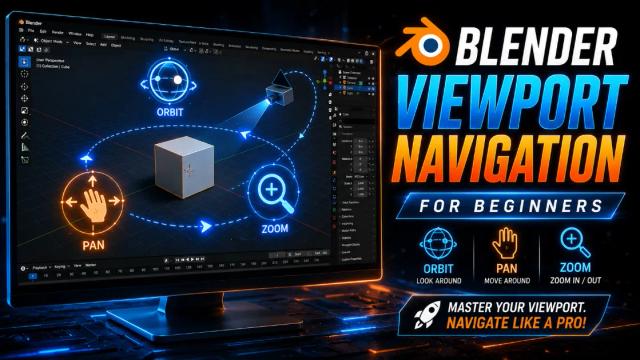
Blender Viewport Navigation for Beginners: Move Around the 3D Space Like a Pro
Learn how to orbit, pan, zoom and navigate Blender's 3D viewport with essential shortcuts every beginner should know.

The Complete Blender Learning Roadmap for Beginners in 2026
A complete step-by-step Blender roadmap for beginners, from your first model to creating game-ready assets and animations.
What Is Lowpoly 3D Modeling and Why Indian Game Creators Should Care
Lowpoly 3D modeling is lightweight, game-ready, and perfect for Indian creators. Here's what it is, why it matters, and how to start.